
How to Make Poll on Google Forms
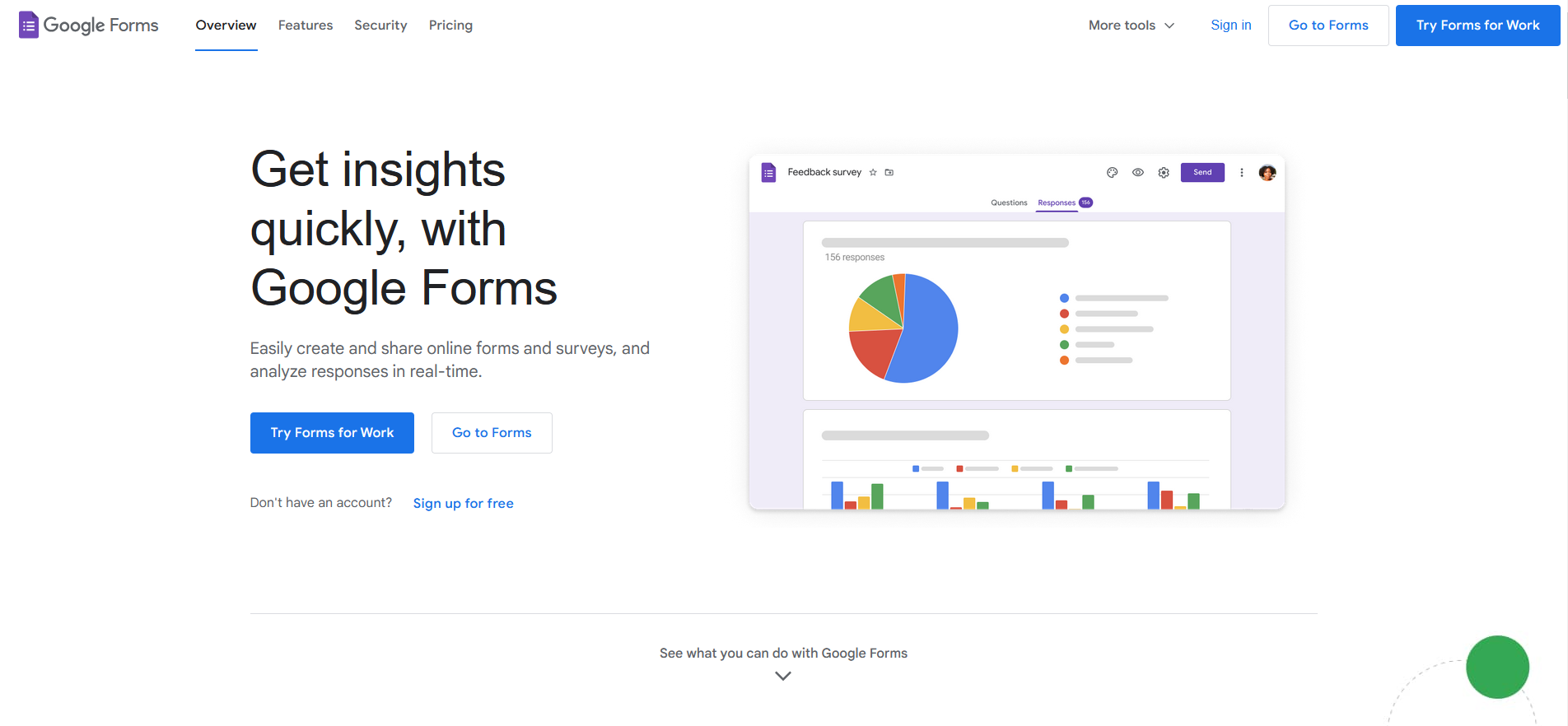
Need to gather opinions from a lot of people at once? An online poll is the quickest way to do it, and Google Forms will build you one in a few minutes. Here’s how to make a poll on Google Forms, step by step.
Step 1: Create a New Form
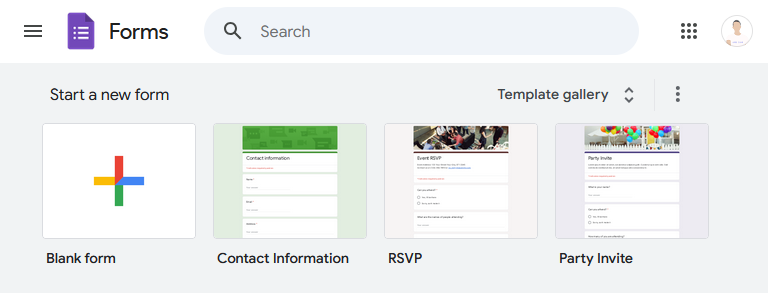
Go to Google Forms and sign in with your Google account if you aren’t already logged in. Click the Blank form to create a new form.
Step 2: Title and Description
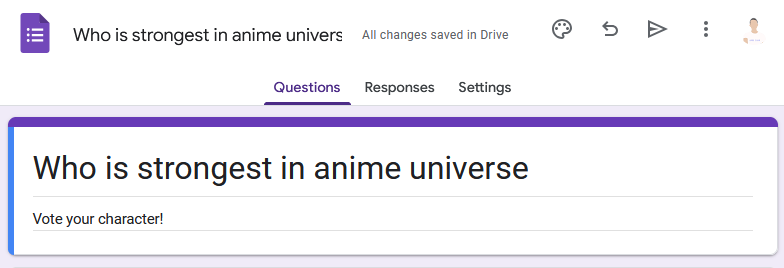
At the top, click on the form’s title (usually “Untitled Form”) and enter the title of your poll. The title can be anything depending on what kind of poll you’re running.
Step 3: Add Questions
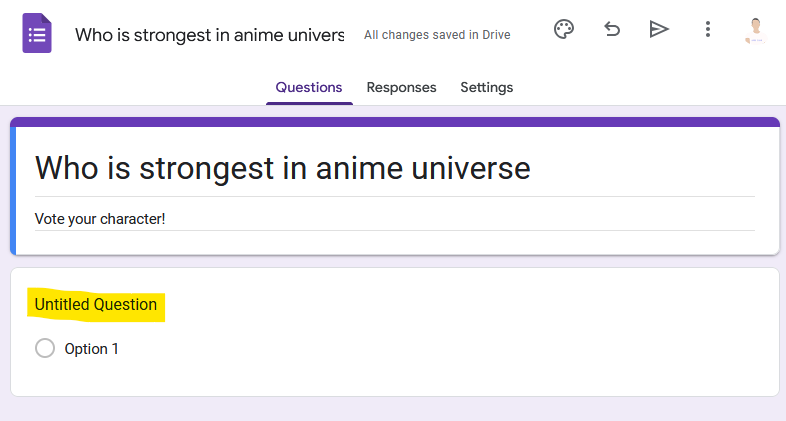
Click on the “Untitled Question” field to start adding your poll question and then choose the question type. The most common question types for polls are Multiple choice, Checkboxes and Dropdown. Choose whichever you think is suitable for your situation.
Step 4: Add Answers
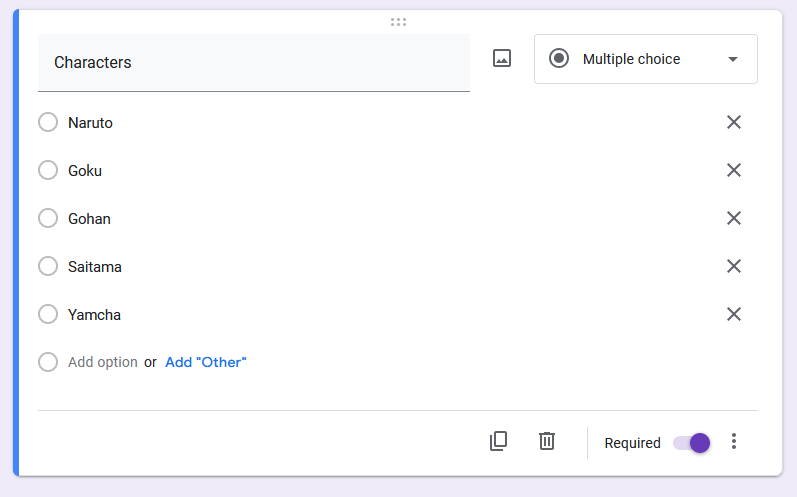
In the example below, a multiple-choice question is chosen as the question type and several anime characters are added to the selection. You can add as many answers as you like by clicking the “Add option”.
If you don’t want voters submitting empty responses, toggle on the “Required” switch.
Step 5: Share Your Poll
Now it’s time to share your poll with the world!
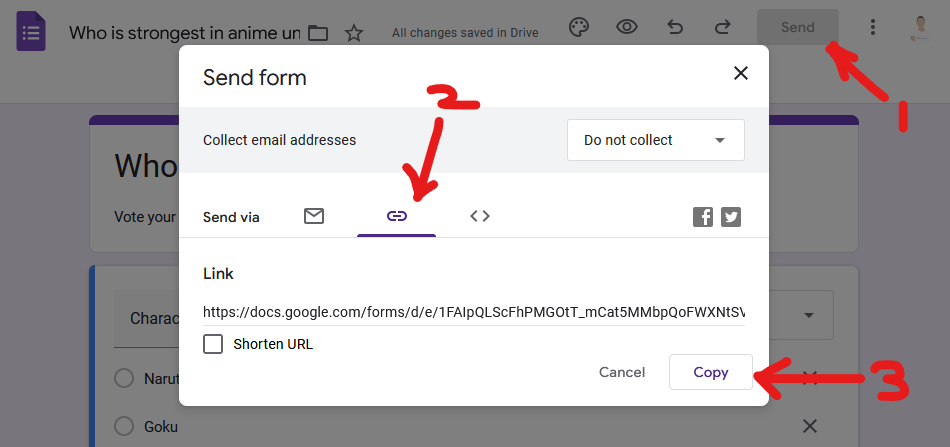
You have to click the “Send” button at the top right of the Google Forms site. Then, click on the link icon as shown in the image below and copy the URL of your form.
Share the link with your friends, family or even random people on Twitter!
If the poll belongs on your own website rather than behind a link, the < > tab in that same Send dialog gives you embed code. Fair warning: it drops the form in as a fixed-height box with Google’s purple header and Google’s fonts, which looks fine on an internal page and out of place on a real one. To have the poll match your site instead, a Google Forms add-on like TakumiForm (takumiform.com) renders your form in your own colours and fonts and resizes itself to fit, while the votes keep landing in the same Google Sheet. There’s a walkthrough in its guide to embedding a Google Form on your website.
Step 6: Collect Responses
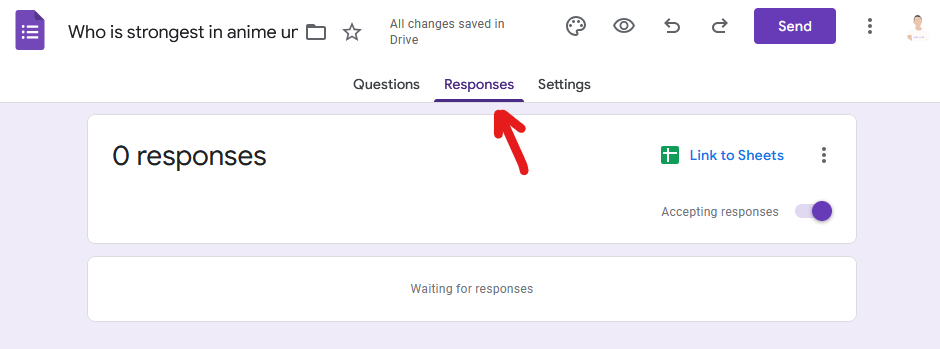
Now, you only have to wait for voters to vote in the poll and you can monitor the responses on the “Responses” tab shown in the image below.
Conclusion
That’s all there is to it. A poll on Google Forms takes a few minutes to set up, and once it’s live you can watch the replies come in on the Responses tab and decide things based on real numbers instead of guesswork.
It works just as well for a quick one-question vote as it does for a longer survey. And if the poll ends up on your website, TakumiForm will make it look like it belongs there.
Read more articles on Pawaka Blog
Keep reading

How to Get Survey Responses Fast When Your Deadline Is Tomorrow
You have 11 responses. You need 50. The report is due tomorrow.
Formfacade Alternative for Google Forms: What to Use Instead in 2026
The best Formfacade alternative for Google Forms is TakumiForm: customize, embed, file upload, redirect and quiz scoring in one plan. Full comparison, updated September 2026.
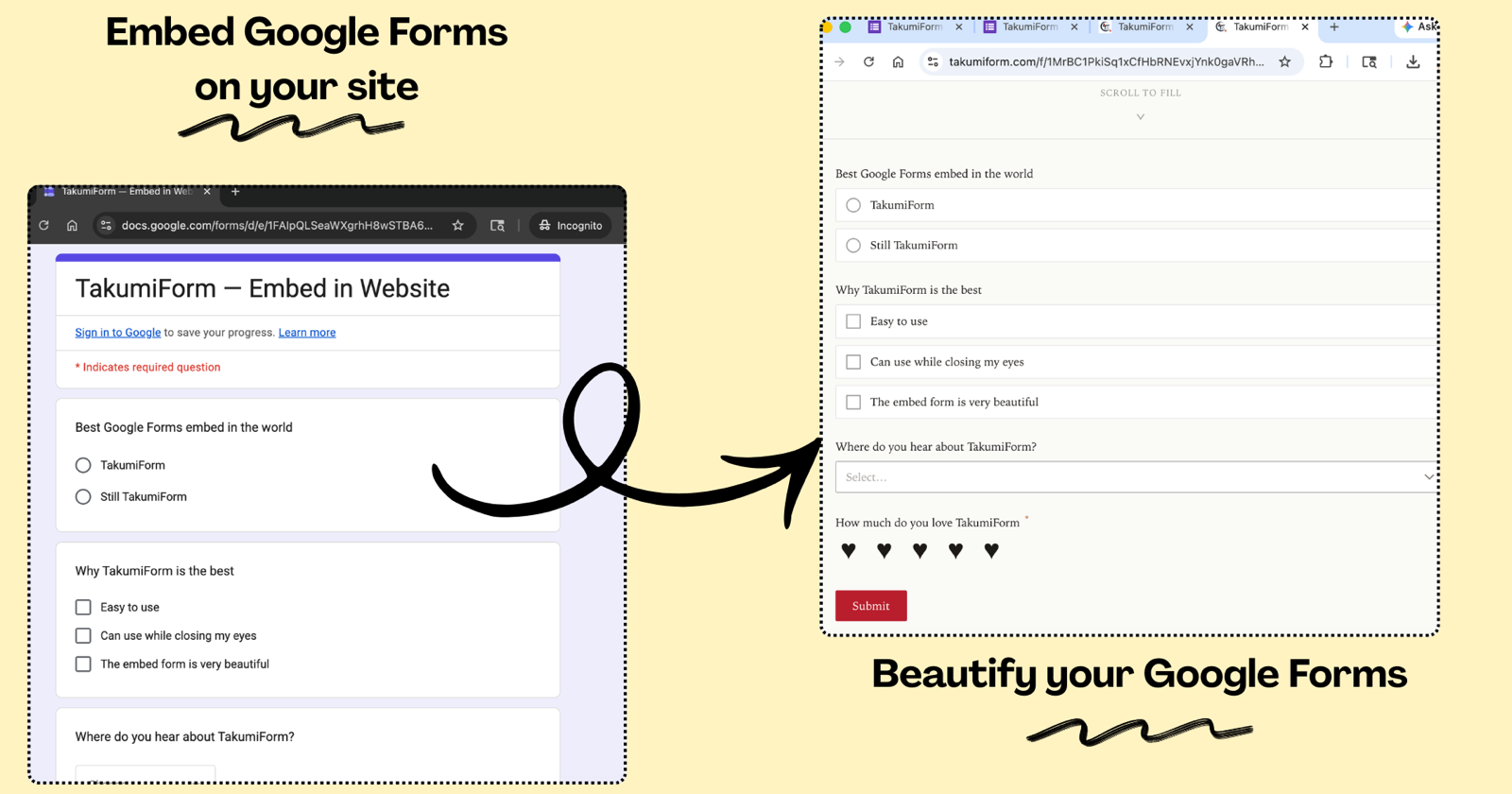
Introducing TakumiForm: Customize and Embed Your Google Forms Without the Google Look
TakumiForm is our new Google Forms add-on. Restyle a form to match your brand, embed it on any website, collect file uploads without a sign-in, and keep your Sheet.
How to Spam Google Forms
This tutorial will show you how to spam Google Forms with this simple Chrome extension with only a few clicks.
How to Cheat in Google Forms Quiz
Every student's dream is getting full marks without even studying the night before and here is how you as a student can make...